
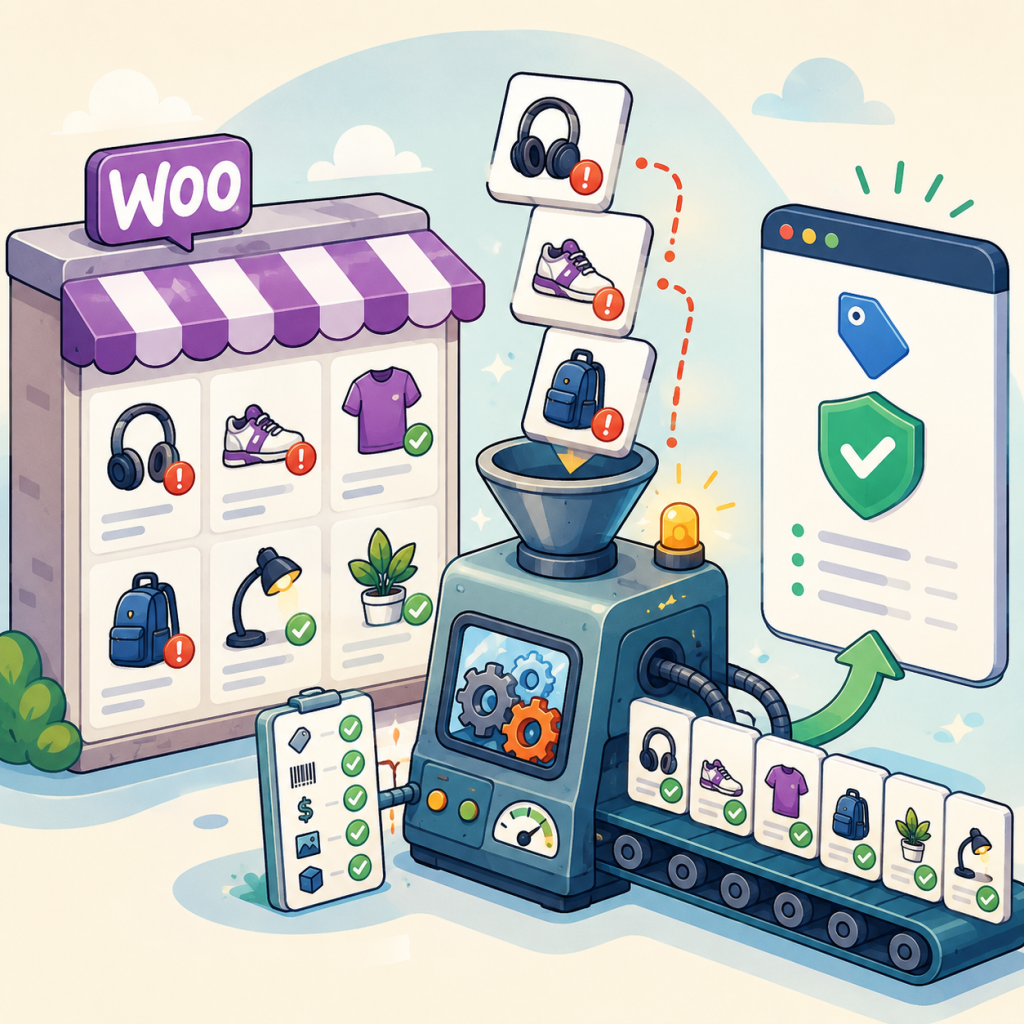
Products disapproved in Google Merchant Center almost always come down to a handful of fixable data problems. This WooCommerce checklist covers the reasons Google actually names, from missing GTINs and undersized images to price mismatches and shouty titles, with the exact fix for each one.
You open Merchant Center on a Tuesday morning and half your catalog is gone. Not deleted. Disapproved. Little red labels where your revenue used to be, and Google Ads quietly stopped showing those products to anyone.
If you run a WooCommerce store, this article is the checklist I wish someone had handed me the first time it happened. We’ll go through the disapproval reasons Google actually names, what each one means in plain English, and exactly where to fix it inside WooCommerce. No theory, just the fixes.
First: find out why, not just what
Merchant Center tells you the reason for every disapproval, but it buries the detail one click deep. Go to Products, then open the Needs attention view. Click any affected product and read the specific issue name. That exact wording matters, because Google’s issue names map to specific fixes, and guessing wastes days.
One scope note before we start: this article is about item-level disapprovals, individual products going red. If your whole account got suspended, that is a different beast with different fixes, and we covered it separately in Why Google Merchant Center Suspends WooCommerce Stores.
Google splits problems into two families: data quality issues (your product data is wrong, missing, or doesn’t match your site) and policy issues (something about the offer or site violates a Shopping policy). Most stores’ disapprovals are data quality, and those are the ones you can fix this afternoon.
1. Missing or invalid product identifiers (GTIN, MPN, brand)
This is the most common one. Google wants to know exactly which product you’re selling, and for most new, branded products that means a GTIN, the number under the barcode. Issue names to look for: “Missing IDs (GTIN or MPN and brand)”, “Invalid value (GTIN)”, “GTIN not correct length”, and “Conflicting values (GTIN, brand)”, which means the barcode you entered belongs to a different brand than the one in your feed.
The WooCommerce fix is easier than it used to be. Since WooCommerce 9.2, every product has a native GTIN, UPC, EAN or ISBN field under the Inventory tab of the product editor, and it works on variations too. Put the real barcode there, not in a custom field your feed plugin can’t see. If a product genuinely has no GTIN (handmade goods, house brands), give Google the brand plus MPN instead, and make sure your feed marks the product accordingly rather than sending an empty GTIN.
One honest warning: do not invent GTINs or reuse one from a similar product. Google checks barcodes against brand databases, and made-up numbers are how a data-quality problem turns into an account-level trust problem.
2. Images that are too small (and the deadline you should know about)
Right now, Google’s floor is 100 x 100 pixels for most products and 250 x 250 for apparel. That floor is going away. Google has announced that from 31 January 2027, every product image must be at least 500 x 500 pixels, one rule for everything, and Merchant Center has been showing warnings on smaller images since 2026. Google’s own recommendation is around 1500 x 1500 for images that work across every listing format.
In WooCommerce, the image Google sees is usually your product’s featured image at full size, so the fix is to re-upload originals at 800 pixels or larger on the short side, ideally 1500. If your originals are fine but your feed sends a thumbnail, check which image size your feed plugin exports. And if you replaced images recently, regenerate thumbnails so old crops stop circulating.
Small images are worth fixing before the deadline forces you to. It’s the difference between a quiet afternoon now and a catalog-wide disapproval wave in January 2027.
3. Generic, watermarked, or promotional images
Google names these “Generic image” and “Promotional overlay on image”. The rules are strict and simple: the image must show the actual product, with no placeholder graphics, no logos over the photo, no “Free shipping!” text baked into the pixels, no watermarks. Marketing belongs in the title and description, never on the image itself.
The fix is manual but mercifully boring: replace the offending images. If your supplier’s photos come watermarked, that’s worth a hard conversation with the supplier, because those images will keep getting your products disapproved forever.
4. Price or availability doesn’t match your product page
This one deserves your respect, because it’s the only category where Google disapproves first and asks questions later. If the price in your feed says one thing and your product page says another, even briefly, Google can apply preemptive item disapproval. There’s no grace period, and on WooCommerce stores it’s almost always caused by one of three things: a caching plugin serving stale prices to Google’s crawler, a sale price that started or ended between feed updates, or currency and tax settings that render a different number on the page than the feed sends.
Three fixes, in order of payoff. First, turn on automatic item updates in Merchant Center, which lets Google correct temporary mismatches from your page’s structured data instead of disapproving. Second, make sure your product pages output correct structured data, which WooCommerce does by default, so be careful with themes or plugins that strip or duplicate it. Third, if you schedule sales, schedule your feed refresh right after the price changes, not twelve hours later.
5. Shouty titles
“Excessive capitalization” means what it says. A title like “SALE!! BEST Ceramic Mug EVER” reads like spam to Google, and it gets disapproved as spam. Write titles the way a catalog would: brand, product, key attribute, size or color. Save the enthusiasm for the description, and even there, use it sparingly.
6. Wrong category, or missing apparel details
“Invalid value (Google product category)” means the category in your feed doesn’t exist in Google’s taxonomy. Use Google’s own category names or numeric IDs, not your shop’s category names. And if you sell clothing, Google requires attributes most other categories skip: gender, age group, size, and color. Missing any of them is a disapproval, not a warning.
The habit that keeps you approved
Here’s the uncomfortable truth about Merchant Center: it’s not a set-it-and-forget-it system. Products drift. A supplier import overwrites your GTINs, a new theme breaks structured data, a seasonal sale creates a price mismatch, and each of those shows up as a disapproval days later, usually when you’re busy with something else.
The stores that stay approved treat catalog health like backups: a routine check, not an emergency response. That’s actually why we built FeedProof for WooCommerce, a free plugin that scans your whole catalog for these exact issues, missing identifiers, undersized images, thin data, the works, and gives you a health score plus a fix list before Google finds the problems for you. It runs entirely inside your WordPress admin, and the free version does the full audit.
But tool or no tool, the checklist above is the job: real identifiers, big clean images, prices that match, calm titles, correct categories. Fix those five things and request a review in Merchant Center, and most catalogs come back within days.
Your products can’t sell if nobody can see them. Fix the data, request the review, and get back to selling.