
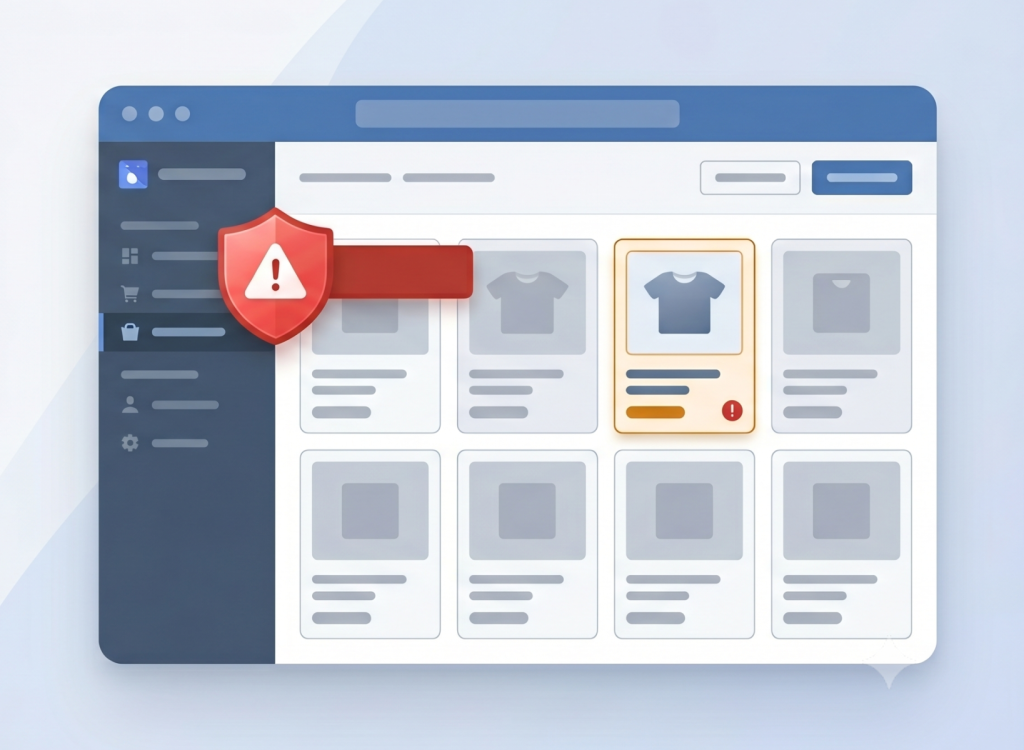
A practical breakdown of why Google Merchant Center disapproves and suspends WooCommerce products, and how to catch the catalog-side causes before your ads get switched off.
Few things rattle a WooCommerce store owner like opening Google Merchant Center to find the account suspended. Your Shopping ads stop, your products vanish from Google, and the revenue you were counting on this week is gone, often behind a vague reason and a slow appeal.
Here is the part that stings and helps at the same time: a Merchant Center account is almost never suspended out of nowhere. The trouble builds up from product data problems that were sitting in your WooCommerce catalog the whole time, quietly waiting to be flagged. The good news is that the largest, most common category of those problems is completely preventable, and you can catch it before you ever connect a feed.
This guide breaks down why Merchant Center disapproves and suspends WooCommerce stores, separates the issues you can fix in your catalog from the ones you cannot, and gives you a pre-flight checklist to run before you submit.
Disapproval vs. suspension: how small problems snowball
It helps to understand the two levels Google works at:
- Product disapprovals (item level). A single product is rejected, usually for a data problem: a missing identifier, no image, an invalid price. The rest of your catalog keeps running.
- Account suspension (account level). Google stops the entire account. Sometimes this is sudden (a serious policy hit like misrepresentation). More often it is the slow version: enough products get disapproved, the same issues keep recurring, and Google escalates from item-level warnings to an account-level suspension.
The takeaway is that a catalog full of small, ignored disapprovals is not a harmless backlog. It is the on-ramp to a suspension. Clean data is not just about getting more products approved; it is about not tripping the account-level alarm in the first place.
Bucket 1: Product data problems (the preventable majority)
These are catalog issues. They live in your WooCommerce product data, and you can find and fix every one of them before submitting. This is where most stores lose the most ground.
- Missing unique identifiers (GTIN, brand, MPN). Google uses these to match your products to known items. Branded products without a GTIN or brand are frequently disapproved, and modern WooCommerce has a native GTIN field and a brand taxonomy that many stores never fill in.
- Missing or poor product images. No featured image is an automatic problem. So are placeholder images, tiny images, heavy watermarks, or promotional text burned into the image.
- Missing or invalid price. A product with no price, or a variable product where no variation has a price, will not run.
- Price and availability mismatch. If the price or stock status in your feed does not match what Google sees on the live product page, that is a trust problem, and it is one of the faster routes to disapproval.
- Missing product category. Products with no category are harder for Google to classify, which can lead to wrong placement or rejection.
- Promotional text in titles. ALL-CAPS runs, “FREE SHIPPING”, phone numbers, and “!!!” in the title violate Google’s rules and read as low quality.
- Thin or missing descriptions. Empty or one-line descriptions give Google little to work with and can hurt both approval and performance.
- Missing SKU and inconsistent data. Gaps and inconsistencies across your catalog make the whole feed look unreliable, and reliability is exactly what Google is grading.
The pattern with Bucket 1 is that store owners almost never know how much of it they have. A catalog imported over years, edited by multiple people, and never audited will quietly accumulate hundreds of these gaps. You do not feel it until Google does.
Bucket 2: Account and site trust problems (handle these separately)
These are real suspension causes too, but they are not catalog data, so no catalog tool will fix them. Be honest with yourself about these:
- Misrepresentation. The vague, scary one, and one of the strictest Google Merchant Center policies. It covers mismatched information, hidden fees revealed late at checkout, fake urgency or countdowns, and anything that makes the store look less trustworthy than it claims to be.
- Missing or hard-to-find business information. No clear contact details, business name, or address.
- No return, refund, or terms policy. Google expects shoppers to see clear policies.
- Insecure checkout. A checkout without proper SSL.
- Restricted or prohibited products. Some categories are simply not allowed, or require extra approval.
If your Google Merchant Center account was suspended for misrepresentation or a missing policy, fixing your product data will not lift it. Address the site and policy side directly. The point of separating the buckets is so you spend your energy in the right place.
The pre-flight checklist
Before you connect a feed plugin or submit to Merchant Center, run through this:
- Every published product has a featured image, and the image is real, not a placeholder.
- Every product has a valid price (and every variable product has at least one priced variation).
- Every product has a category.
- Branded products carry a brand and, where relevant, a GTIN or MPN, using WooCommerce’s native fields or your configured meta.
- Titles describe the product without promotional text or shouting.
- Descriptions are complete enough to be useful.
- The price and stock on your product pages match what your feed will send.
- Your site has visible contact info, return and refund policies, secure checkout, and you are not selling restricted items (Bucket 2).
Working through hundreds of products by hand is slow and error prone, which is exactly why most stores skip it and find out the hard way.
Where a pre-flight catalog audit fits
This is the gap FeedProof for WooCommerce was built to close. It is a free, admin-only plugin that scans your WooCommerce catalog for the Bucket 1 data issues above, missing images, prices, categories, identifiers, weak titles and descriptions, and shows you exactly which products are affected, with a single Catalog Health Score so you can see your readiness at a glance and track it as you clean up.
The honest version of what a tool like this does and does not do:
- It finds the preventable, catalog-side problems before they reach Merchant Center, so you fix them on your own schedule instead of scrambling after a disapproval.
- It does not touch Bucket 2 (misrepresentation, policies, site trust), and it does not guarantee approval. No plugin can promise that, and you should be skeptical of any that does. Approval is Google’s decision, against Google’s policies.
What it changes is your odds and your timeline: you go into Merchant Center with a catalog you have actually inspected, rather than discovering half of it was broken after your ads are already switched off.
Frequently asked questions
Why was my Google Merchant Center account suspended?
Usually one of two things: an accumulation of product disapprovals from data problems (missing identifiers, images, or prices, or feed data that does not match your live pages), or an account-level policy issue such as misrepresentation. Open the Diagnostics or Account issues area in Merchant Center to see the specific reason Google lists for your store.
How long does a Merchant Center suspension last?
It depends on the reason. Product data disapprovals typically clear on their own once you correct the products and Google re-crawls them. A misrepresentation suspension is stricter: Google generally requires you to fix the underlying issues and then wait a short period (often about a week) before you can request a review.
Can I appeal a Google Merchant Center suspension?
Yes. After you fix the issues Google flagged, you request a review from inside Merchant Center. Appeals filed without real fixes tend to fail, so correct the data and policy problems first, then submit the review.
Will fixing my WooCommerce product data lift a suspension?
If the suspension stems from product data (Bucket 1 above), fixing it is exactly what Google wants to see before a review. If it stems from a site or policy problem (Bucket 2), clean product data alone will not lift it, you have to address the policy issue directly.
Does FeedProof guarantee my products get approved?
No. FeedProof finds the preventable, catalog-side issues before you submit so you can fix them, but approval is always Google’s decision against Google’s policies. Be skeptical of any tool that promises guaranteed approval.
The bottom line
Merchant Center suspensions feel random, but most of them trace back to product data you could have seen coming. Split the problem into what is fixable in your catalog and what is a site or policy issue, fix the catalog side before you submit, and you remove the single largest category of risk. Audit first. It is a lot cheaper than an appeal.