
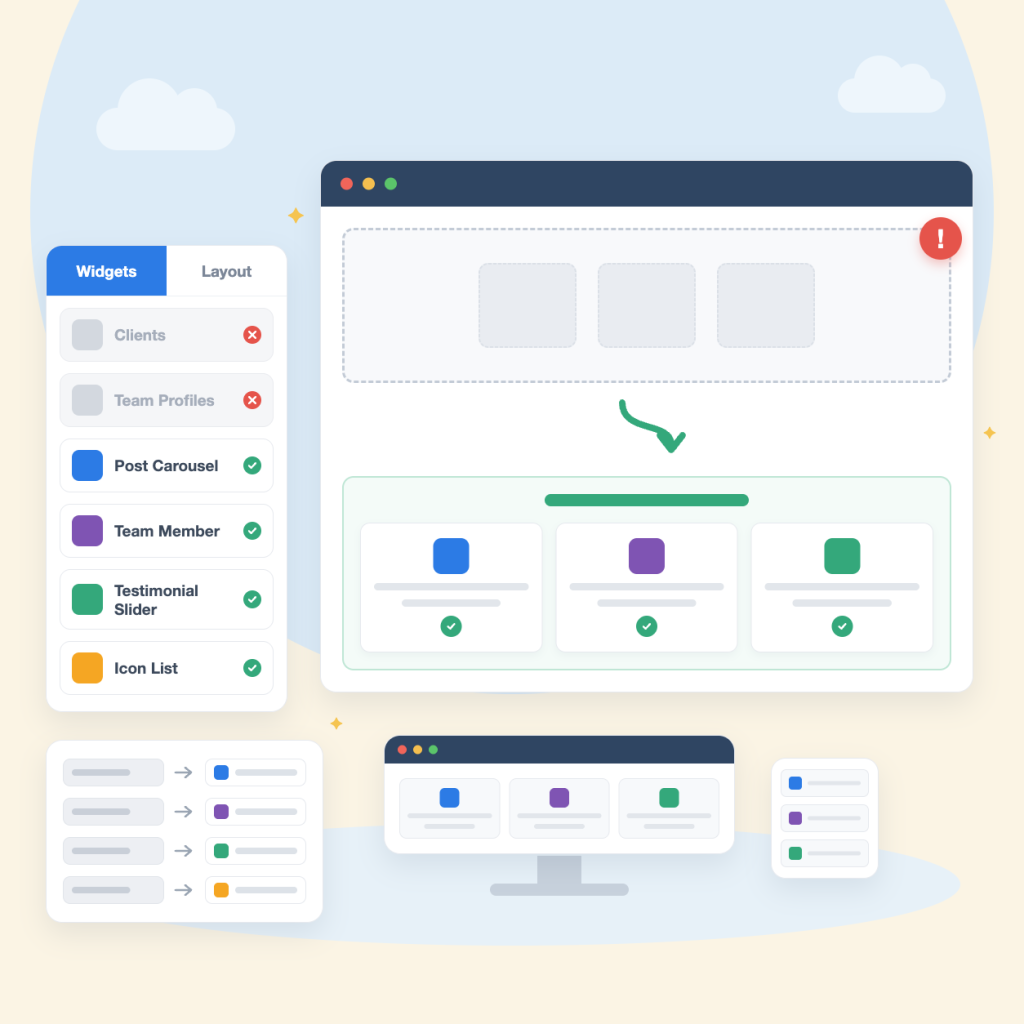
If your site still runs Livemesh SiteOrigin Widgets, your pages are rendering fine today, but the plugin will never be patched again. This guide covers what actually breaks, which widget replaces which, and how to rebuild a page safely.
If you built pages with Livemesh SiteOrigin Widgets, you have probably noticed it is no longer in the WordPress.org plugin directory. This page explains what actually happened, what it means for your site, and which widget to reach for if you decide to move.
What happened
Livemesh SiteOrigin Widgets was removed from the WordPress.org plugin directory on 18 May 2026 and is no longer receiving updates there. WordPress.org lists the reason as a security issue. Because the plugin is no longer in the directory, WordPress will not offer you an update for it, whatever the developer does next.
We are stating that plainly because it changes the decision, not to pile on. It was a well built plugin with a lot of happy users, and being unable to patch it is the problem here rather than the code that shipped.
Being removed from the directory does not uninstall anything. If the plugin is still active on your site, your pages are still rendering right now. What you lose is future updates, including security fixes, and the ability to reinstall it if you ever remove it.
What this means for your pages
This is the part that surprises people, so it is worth being precise.
SiteOrigin Page Builder does not store a copy of your finished layout. It stores a reference to the widget that built it. When a widget’s plugin is gone, the reference points at nothing, so the section renders empty. Your text and images are still in the database, but the page stops showing them.
In practice that means:
- While Livemesh is still active, nothing changes. Your pages look the same as always.
- If you deactivate or delete Livemesh, every section built with one of its widgets will render blank until you rebuild it with another widget.
So there is no emergency. There is a decision to make, on your own schedule, and the sensible order is to rebuild first and remove afterwards.
Which widget replaces which
Livemesh shipped eighteen free widgets. Twelve have a direct counterpart in the free Zen Addons plugin, one is a Pro feature, four are covered by the SiteOrigin Widgets Bundle you already have installed, and one has no ready replacement anywhere. The first table below has eleven rows rather than twelve because Testimonials and Testimonials Slider share a single replacement.
Covered by the free Zen Addons plugin
| Livemesh widget | Zen Addons equivalent |
|---|---|
| Accordion / Toggle | Simple Accordion |
| Clients | Logo Showcase |
| Icon List | Icon List |
| Odometers / Counters | Counter |
| Posts Carousel | Post Carousel |
| Pricing Plan | Pricing Table |
| Services | Services Grid |
| Stats Bar / Bar Charts | Progress Bars |
| Tabs | Basic Tabs |
| Team Profiles | Team Member |
| Testimonials, and Testimonials Slider | Testimonial Slider |
Already covered by SiteOrigin’s own free bundle
You do not need anything extra for these. The SiteOrigin Widgets Bundle, which Livemesh required anyway, already ships them.
| Livemesh widget | Use instead |
|---|---|
| Button | SiteOrigin Button |
| Heading | SiteOrigin Headline |
| Hero Image | SiteOrigin Hero Image |
| Carousel | SiteOrigin Anything Carousel |
Needs Zen Addons Pro
| Livemesh widget | Equivalent |
|---|---|
| Portfolio Grid | Portfolio Grid, in Zen Addons Pro |
No direct replacement
Pie Charts. Neither Zen Addons nor the SiteOrigin bundle ships an animated pie chart widget. If you rely on it, the closest honest options are Progress Bars for the same information in a different shape, or a dedicated charting plugin.
How to move a page across
There is no automatic conversion. We are not going to pretend otherwise: the widget settings are stored in each plugin’s own format, so nothing can reliably translate one into the other without risking your content. It is a manual rebuild, and it goes faster than it sounds.
- Leave Livemesh active while you work. You want to see the original beside the replacement.
- Install the free Zen Addons plugin if you need one of the twelve widgets above.
- Edit the page with Page Builder and add the replacement widget into the same row, next to the Livemesh one rather than on top of it.
- Copy the content across. Text, images and links transfer by hand. Styling options will not match one for one, because the two plugins expose different settings.
- Preview, then delete the old widget once you are happy.
- Repeat for every affected page, and only deactivate Livemesh when none are left.
If you are not sure which pages use it, edit a page with Page Builder and look for widgets labelled with the Livemesh name in the row. There is no need to rush the whole site in one sitting.
A note on doing nothing
Leaving the plugin active and untouched is a legitimate choice in the short term, and plenty of sites will do exactly that. The trade-off is that it will not receive security updates again, so the risk grows quietly over time rather than announcing itself. If the site is important to you, plan the move rather than deciding by default.
Where Zen Addons fits
Zen Addons for SiteOrigin Page Builder is our free widget pack, and it is the reason we wrote this page: it happens to cover most of what Livemesh did, so we are a reasonable landing spot. It is free on WordPress.org, actively maintained, and it does not require an account. If none of the widgets above are ones you use, you do not need it, and this page has hopefully still saved you some time.